 NexaPlay
Install NexaPlay on LG TV
LG Smart TVs (webOS) · 7 steps · about 3 min
On LG TVs, NexaPlay installs from LG Content Store, the TV app store.
- An LG Smart TV with webOS, connected to the internet
- The TV remote
AInstall the app
-
1
Connect the TV to the internet
Open Settings → Network and check that the TV is connected by Wi-Fi or cable.
-
2
Open LG Content Store
Press the Home button on the remote and choose LG Content Store (called Apps on some models).
-
3
Search for “NexaPlay”
Select search and type NexaPlay.
-
4
Install the app
Open NexaPlay and press Install. The app then appears in the app list on the home screen.
BAdd your playlist and start watching
-
5
Note the device code
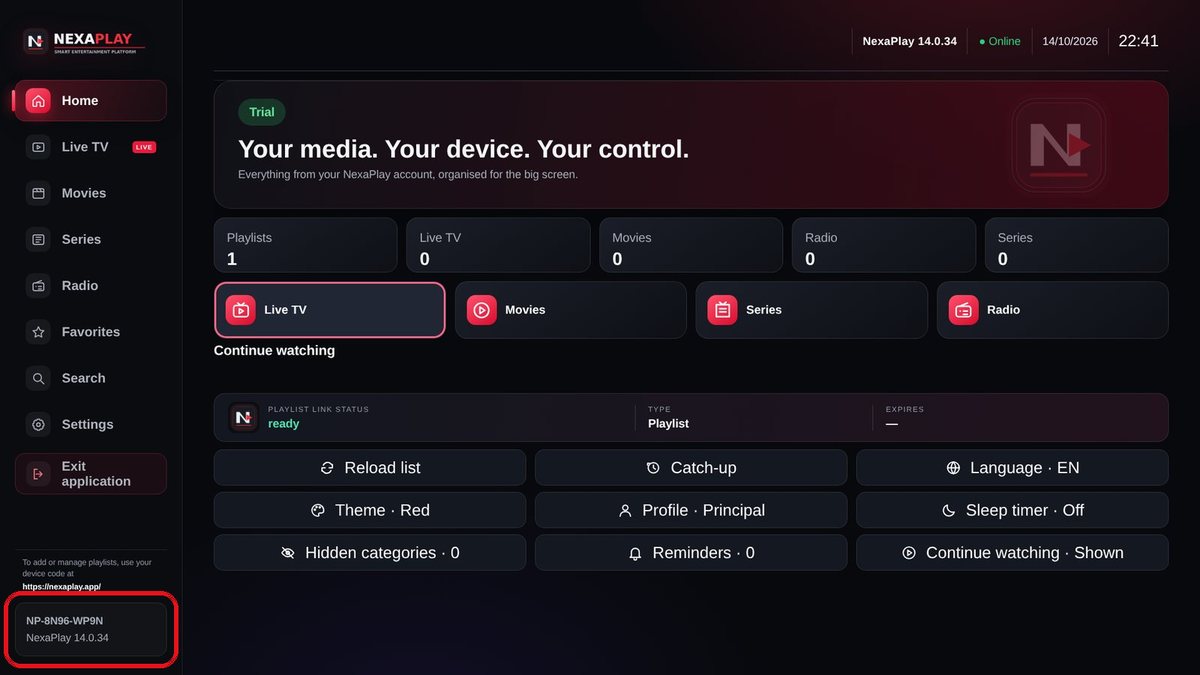
When you open NexaPlay, the unique device code appears at the bottom left (it looks like NP-XXXX-XXXX). Every device has its own code.
-
6
Add your playlist on nexaplay.app
From a phone or computer, go to nexaplay.app/upload-list, enter the code and add your M3U playlist or your Xtream details (server, username, password).
Open Upload List ↗ -
7
Reload the list in the app
Back in NexaPlay, press Reload list. Channels, movies and series appear within seconds.
Every device gets a 7-day trial. If you like it, activate it for life with a single payment, no subscription.
Activate your deviceCommon problems
I cannot find NexaPlay in the store
Update the TV software and check that the country set on the TV is correct (Settings → General → Location). If it still does not appear, send us the TV model.
Still need help?
Write to us and we will reply by email, usually within 24 hours. If it is about a device, add its code.