 NexaPlay
Install NexaPlay on Windows
Windows 10 / 11 · 64-bit · 5 steps · about 2 min
On a computer, NexaPlay installs from the Microsoft Store. Updates arrive automatically, straight from Microsoft.
- Windows 10 or 11, 64-bit
- A Microsoft account (you are usually already signed in)
AInstall the app
-
1
Open the Microsoft Store
Press the button above, or open the Microsoft Store app from the Start menu and search for NexaPlay.
-
2
Press “Get”
Press Get (or Install). When the installation finishes, press Open. NexaPlay also appears in the Start menu.
BAdd your playlist and start watching
-
3
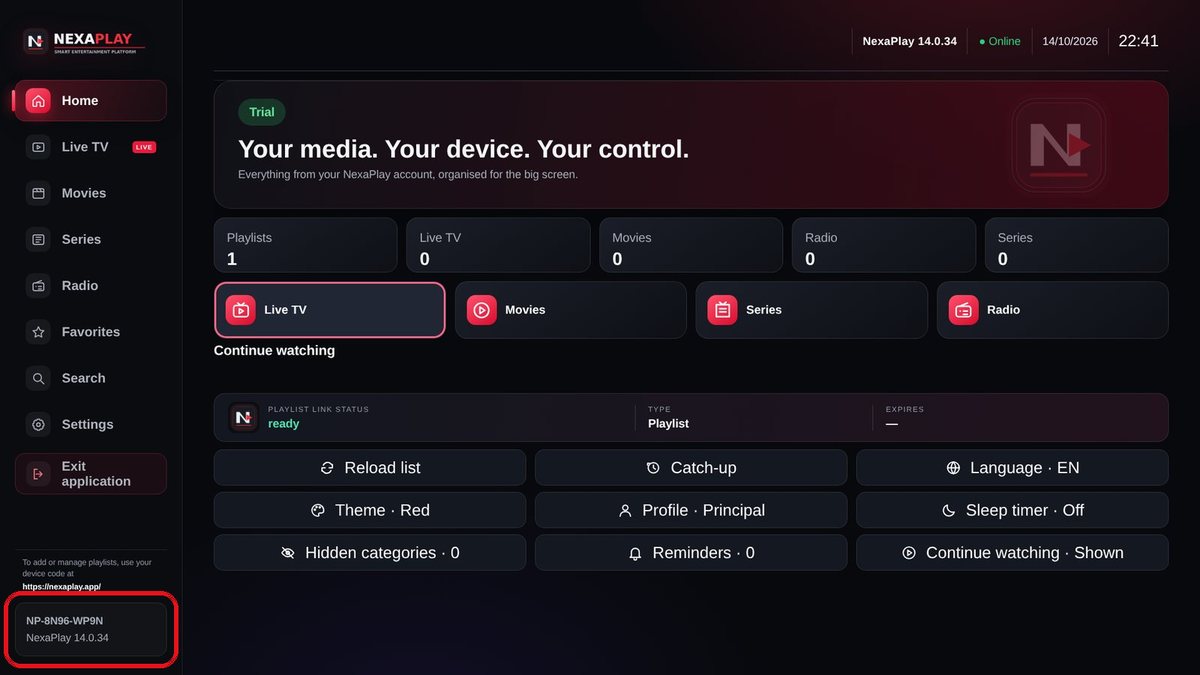
Note the device code
When you open NexaPlay, the unique device code appears at the bottom left (it looks like NP-XXXX-XXXX). Every device has its own code.
-
4
Add your playlist on nexaplay.app
From a phone or computer, go to nexaplay.app/upload-list, enter the code and add your M3U playlist or your Xtream details (server, username, password).
Open Upload List ↗ -
5
Reload the list in the app
Back in NexaPlay, press Reload list. Channels, movies and series appear within seconds.
Every device gets a 7-day trial. If you like it, activate it for life with a single payment, no subscription.
Activate your deviceCommon problems
The “Get” button does nothing
Close the Microsoft Store, open it again and check that you are signed in with your Microsoft account (the icon at the top).
Still need help?
Write to us and we will reply by email, usually within 24 hours. If it is about a device, add its code.